

Introduction
Windows 10 installation guide is a compact, step-by-step companion that walks users through installing Windows 10 on a PC, covering preparation, media creation, and post-install setup in clear, non-technical language. It streamlines common pitfalls and presents practical checks to get a stable Windows 10 system quickly and reliably.
What this guide covers
The Windows 10 installation guide organizes the entire process into logical stages so you can move from planning to a finished system without guessing. It explains hardware compatibility, backup strategies, boot media creation, partitioning basics, and common driver and update tasks. The tone is practical and troubleshooting-focused.
Core features at a glance
- Preparation checklist: Pre-install steps including firmware updates, data backups, and system requirements verification.
- Media creation walkthrough: Creating a bootable USB or DVD and verifying checksums to avoid corrupted installations.
- Installation scenarios: Clean install, upgrade, and dual-boot considerations with safety tips for each approach.
- Driver and update guidance: How to find, install, and rollback drivers and manage Windows Update for stability.
- Post-install tuning: Basic privacy, telemetry, and performance settings to customize the system after setup.
How the step-by-step process works
The guide breaks installation into manageable steps: assess hardware, back up files, prepare boot media, configure BIOS/UEFI, perform the install, and finish with drivers and updates. Each step lists essential checks to reduce risk, such as verifying disk health and ensuring BIOS settings match the chosen boot mode (UEFI or Legacy).
Preparing your PC
Before starting, the Windows 10 installation guide advises running a quick hardware audit. Confirm available disk space, RAM, and CPU minimums, and note any proprietary peripherals that may need vendor drivers. Creating a full backup image or a file-level backup prevents data loss and gives a safe rollback path.
Creating installation media
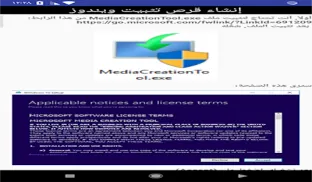
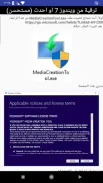
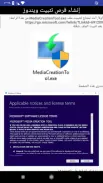
The guide explains how to download the official Windows 10 ISO and create a bootable USB using recommended tools. It highlights verifying the ISO checksum and testing the bootable media on the target machine. For users working with multiple systems, steps for making a single multi-edition USB are included.
Installation choices and partitioning
Users get clear advice on choosing a clean install versus an upgrade. Partition recommendations focus on a simple layout: a system partition for UEFI, a primary OS partition, and optional data partitions. The guide also notes when to use GPT or MBR partition schemes based on firmware.
Performance, drivers, and interface settings
After installation, the Windows 10 installation guide covers driver sourcing strategies and performance tweaks. It recommends starting with manufacturer drivers for chipset, GPU, and network adapters, then using Windows Update for additional components. Simple interface adjustments, power plans, and storage optimizations are presented for users who want smoother performance.
Troubleshooting common issues
- Boot errors: Steps to repair bootloaders and recover from incorrect boot mode settings.
- Activation problems: How to check digital license status and use recovery options for lost keys.
- Driver conflicts: Using Device Manager to roll back or disable problematic drivers.
- Update loops: Methods to pause or reset Windows Update components safely.
Practical tips for first-time installers
Begin with a full backup and ensure you have installation media that can be tested beforehand. Keep drivers and firmware installers on a secondary USB for quick access. If uncertain about partitioning, choose the default installer options; they are safe for most users. Note recovery key locations and create a system restore point once setup is stable.
Why many choose this guide
Readers appreciate that the Windows 10 installation guide focuses on clarity and prevention. It reduces anxiety by explaining the reasons behind each step, not just the actions. The guide is suitable for hobbyists upgrading a home PC and IT professionals preparing multiple workstations because it balances depth with accessible language.
Getting started now
To begin, read the preparation checklist, verify system compatibility, and assemble your backup and media tools. Follow the guide’s sequence to avoid common missteps and refer to the troubleshooting section if you encounter unexpected behavior. With a methodical approach, the Windows 10 installation guide helps you complete a clean, stable installation with confidence.
- No virus
- No advertising
- User protection
Information
- File size: 4.90 M
- Language: English
- Latest Version: 3.12
- Requirements: Android
- Votes: 91
- Package ID: com.mwdapps.win10ins
- Developer: Mohammad Daabes
Screenshots



















Explore More
Make your house a home with our suite of helpful home apps. Discover clever tools to organize closets, streamline chores, and simplify cooking. Take the stress out of cleaning and maintenance with handy checklists and schedules. Enhance security and control appliances and lighting with our smart home integrations. Design, visualize, and renovate like a pro using our 3D planning software.

Metro Micro

All Recovery - Photos & Videos

Tax Calculator India 2024-2025

ClassPass: Fitness, Spa, Salon

OnDjoss

Park4Me

Scary sound effects

Home Workouts - Lose Weight