

Introduction
Screen ON (Stay awake) keeps your Android display active when you need it, preventing the device from sleeping during tasks like reading, navigation, or presenting. Screen ON (Stay awake) is intentionally lightweight and unobtrusive: it offers a main on/off toggle, timed sessions, and per-app exceptions so your screen remains awake for the task at hand without changing global system defaults.
Key features at a glance
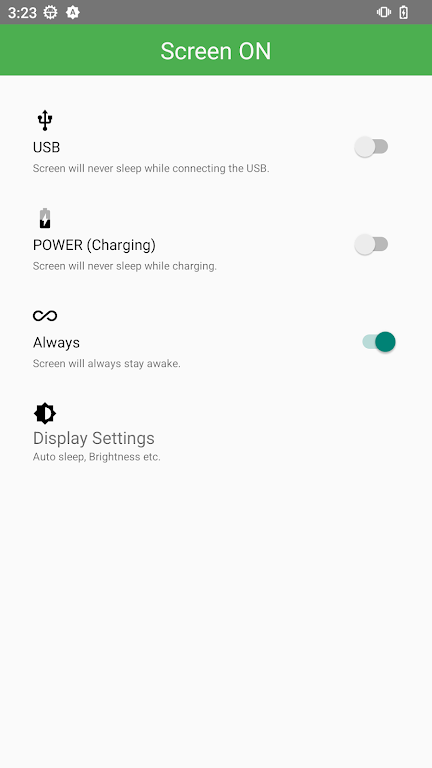
The app presents a minimal interface with clear controls to prevent unwanted timeouts. You can enable the keep-awake state with a single tap, schedule short or long timed sessions, and create exceptions so only selected apps keep the screen alive. Visual indicators are shown in the notification bar while the service is active, and a homescreen shortcut provides instant access. The design focuses on reliability and predictable behavior rather than a long list of obscure options.
How the system works
Under the hood, Screen ON (Stay awake) uses standard Android wake-lock APIs to temporarily override the default screen timeout while the app is active in the foreground or when a selected exception is running. It does not alter system files or require root, and it cooperates with battery savers by offering charging-only or timer-restricted modes. The app detects common manufacturer battery restrictions and offers guidance to help the user whitelist the app when necessary.
Interface and controls
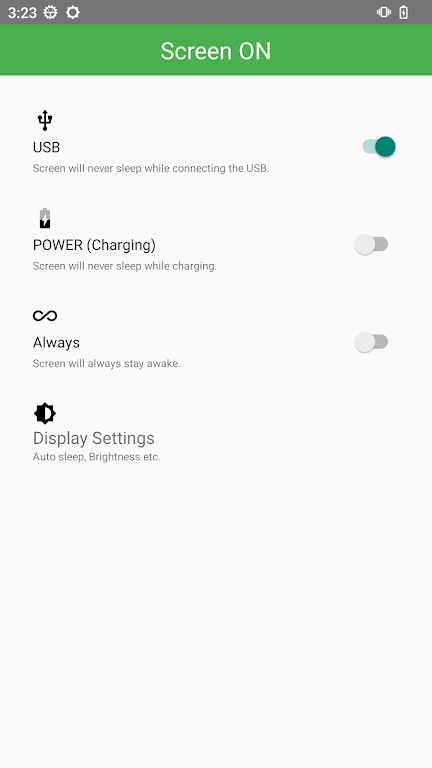
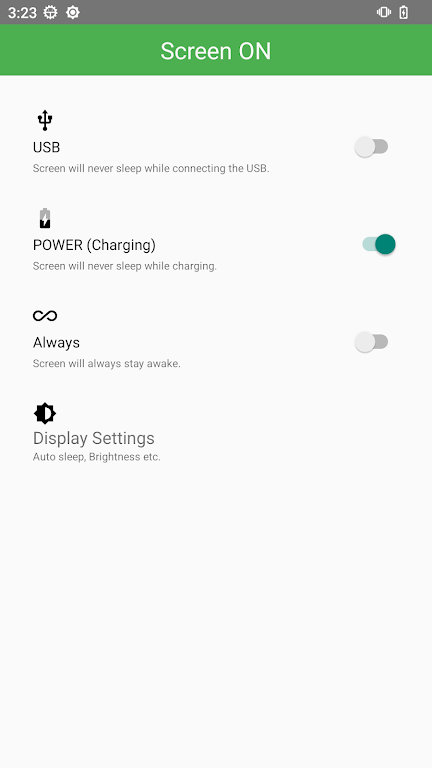
The navigation is deliberately simple: a prominent toggle activates the keep-awake state, and a nearby timer selector lets you choose predefined durations or set a custom interval. Controls are large and labeled for accessibility, and the settings screen provides options to limit wake sessions to charging, restrict behavior to specific apps, or enable automatic reactivation after reboot. The persistent notification includes a quick action to stop the service, making it easy to manage without re-opening the app.
Practical uses and workflows
Screen ON is useful in many everyday scenarios. When following a long recipe, you can enable a timed session so the display stays on while cooking. For navigation or public transport timetables, enable per-app mode so the map or schedule app keeps the screen active. During presentations or demos, use charging-only mode to avoid battery drain while the device remains awake. The app fits into simple workflows: install, grant the requested permissions, pick a default duration, and create any per-app exceptions you need for frequent tasks.
Performance and battery considerations
Maintaining an active display consumes extra power, so Screen ON includes practical safeguards. Choose conservative default timeouts, rely on charging-only mode for long sessions, or use the automatic timeout to ensure the device returns to normal power-saving behavior. The app itself is optimized to minimize CPU usage while holding a wake lock and does not run unnecessary background processes. These choices reduce battery impact while preserving a reliable awake state when you need it.
Customization and personalization
Customization is straightforward but meaningful: select from multiple timeout presets or define a custom interval, enable or disable per-app exceptions, and decide whether the app should start automatically after reboot. You can also control the presence of the persistent notification and choose whether the homescreen shortcut performs a simple toggle or launches the timer selector. These options let you tailor the app to occasional use or to a daily routine without being overwhelmed by settings.
Security, permissions and compatibility
Screen ON requests only the permissions necessary to manage wake locks and display a persistent notification. It does not access personal files, network data, or contacts. The app works fully offline and does not depend on cloud services. Compatibility covers a wide range of Android versions; if your device applies aggressive background optimizations, the app will show contextual tips to help you adjust those settings for consistent behavior.
Tips for best results
For consistent behavior, enable per-app mode for single-app tasks and use charging-only mode for long demonstrations or kiosk-style usage. Set a conservative default timeout if you sometimes forget to turn the feature off, and add the homescreen shortcut for one-tap activation when you rely on the phone for navigation or reference. If you see the notification indicator, use it to stop the service quickly rather than changing system timeouts.
Getting started
After installing, grant the requested permissions and toggle the main switch to test the awake state. Try the timer presets and create a per-app exception for the apps you use most. Add the homescreen shortcut for fast access, and consult the in-app help if your device requires a battery-optimization exemption. Screen ON (Stay awake) aims to deliver a predictable, low-friction way to prevent unwanted screen timeouts while keeping power impact and complexity to a minimum.
- No virus
- No advertising
- User protection
Information
- File size: 5.62 M
- Language: English
- Latest Version: 1.5.9
- Requirements: Android
- Votes: 84
- Package ID: com.eonsoft.ScreenON
- Developer: EONSOFT
Screenshots
















Explore More
Make your house a home with our suite of helpful home apps. Discover clever tools to organize closets, streamline chores, and simplify cooking. Take the stress out of cleaning and maintenance with handy checklists and schedules. Enhance security and control appliances and lighting with our smart home integrations. Design, visualize, and renovate like a pro using our 3D planning software.

Metro Micro

Tax Calculator India 2024-2025

ClassPass: Fitness, Spa, Salon

OnDjoss

Park4Me

Scary sound effects

Home Workouts - Lose Weight

Juice Recipes